- Finish processing all payments (client and vendor) for the period
- If there are payments to be reversed, then they should be reversed prior to printing of reports
- Print the Following Reports:
- Month To date Totals (From the Select Reports menu, select To Date Totals)

- Payment History (select the Client History Reports from the Select Reports menu)
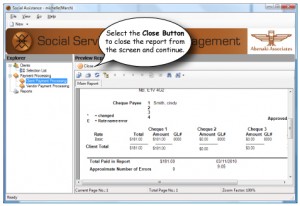
- Print the Vendor Payment History report from the reports menu

- These would be the minimum reports to print. Your Social Services Module offers over 80 different report types, such as clients lists and graphs. We suggest printing all of the reports on a regular basis and decide which ones you would like to incude as part of your Month End Process.
- Month To date Totals (From the Select Reports menu, select To Date Totals)
- BACKUP YOUR DATA – We can’t stress how important this is. Backing up your data on a regular basis will save you both time and money in the long run.
- Have the Administrator or Power user sign in and run the clear Month To Date totals function from the Periodic processing menu. Select the Run button to run the function. When you exit the screen, you must select Yes to save your changes.


